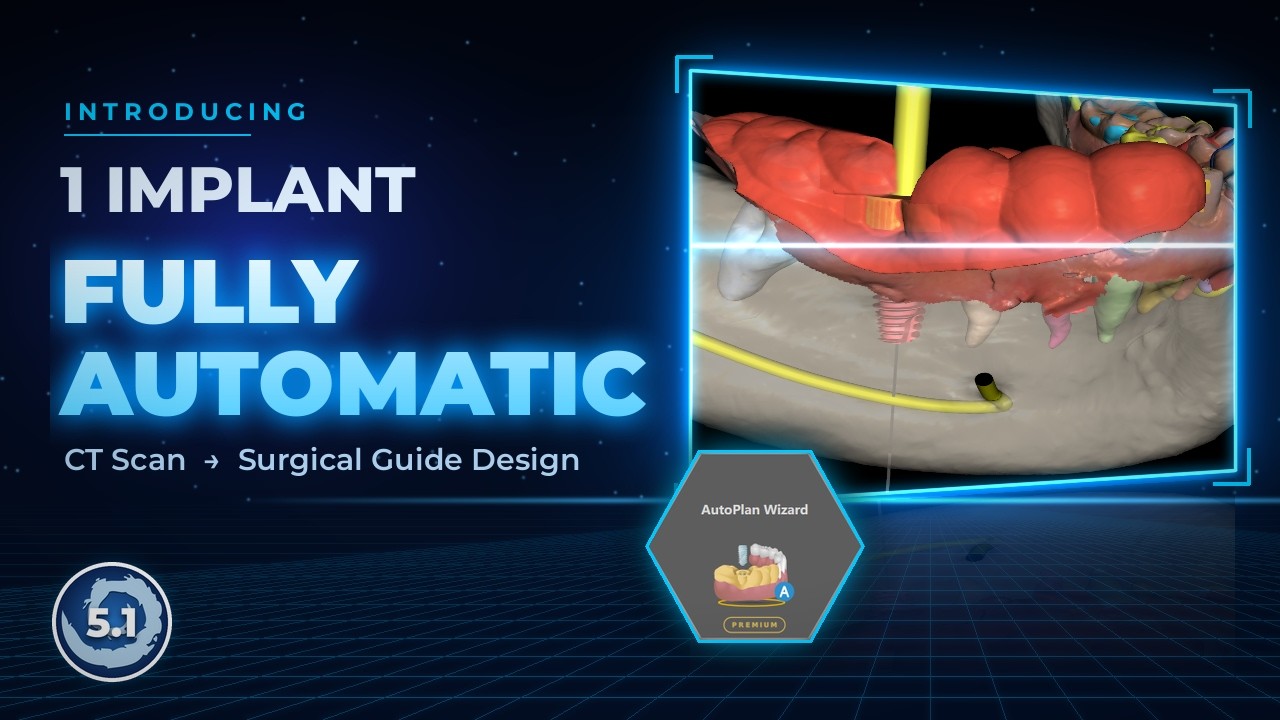
SKY AutoPlan: Patient Folder In, Surgical Guide Design Out

SKY AutoPlan takes one patient folder with the CT and optical scans, asks three quick questions, and plans a 3-implant case automatically in Blue Sky Plan. It then designs the surgical guide. This video shows the full run, and the clinician reviews and approves every step.
Earlier overview of SKY: Meet Sky: AI Implant Planning and Surgical Guides in Blue Sky Plan
Key takeaways
You drag one folder with the CT and optical scans onto SKY, and SKY finds the right scans for you.
After you pick the arch and confirm the implant settings, SKY plans the case on its own inside Blue Sky Plan.
The automatic run aligns the scans, finds the nerve, segments the jaws and teeth, creates AI-generated teeth for the missing ones, sizes and places the implants, and draws the guide curve and windows.
You can adjust the plan by voice, for example "Move implant 19, 1 mm distal."
SKY saves the case, the surgical guide design and the drilling report to your computer once you approve and name the case.
Chapters
0:00 The Biggest Magic Trick In Dentistry
0:11 Drag The Patient Data Into SKY
0:30 Pick The Arch And Implant Settings
0:45 Hands Off: Automatic 3-Implant Planning
1:18 The Treatment Plan Is Ready
1:28 3D Review Of The Automatic Plan
2:34 Confirm The Plan Or Make Changes
2:49 Voice Command: Move Implant 19, 1 mm Distal
3:16 Confirm And Continue
3:26 Surgical Guide Design
3:48 Approve And Name The Case
4:11 Saved: Case, Guide And Drilling Report
4:22 Add Blue Sky Bio Parts To Your Cart
4:39 All Done: The Saved Folder
Step by step
Drag the patient folder (CT and optical scans) onto SKY. SKY finds the right scans for you.
Pick the arch and confirm your implant settings, then let SKY work hands off.
Wait while SKY aligns the scans, finds the nerve, segments the jaws and teeth, creates AI-generated teeth for the missing ones, sizes and places the implants, and draws the guide curve and windows in Blue Sky Plan. The video shortens this step of about 4½ minutes.
Review the plan in 3D, then go implant by implant (#31, #30 and #19 in this case).
Confirm the plan or make changes. To adjust it by voice, say a command such as "Move implant 19, 1 mm distal."
Approve the surgical guide design and name the case. SKY saves the case, the guide design and the drilling report to your computer.
Frequently asked questions
What does SKY AutoPlan do?
SKY plans an implant case automatically in Blue Sky Plan and designs the surgical guide. You review and approve every step, and the clinician reviews every plan before surgery.
What do I need to give SKY to start?
One patient folder that holds the CT and optical scans. SKY finds the right scans, then you pick the arch, confirm your implant settings and answer three quick questions.
How do I change the plan SKY made?
You adjust it by conversation. In the video, the command "Move implant 19, 1 mm distal" is spoken, and you then confirm and continue.
What does SKY save at the end?
After you approve the surgical guide design and name the case, SKY saves the case, the guide design and the drilling report to your computer.
How long does the automatic planning take?
The planning step in this video takes about 4½ minutes, and the video shortens it. The review, adjustment and approval steps are shown in full.