Meet Sky: AI Implant Planning and Surgical Guides in Blue Sky Plan

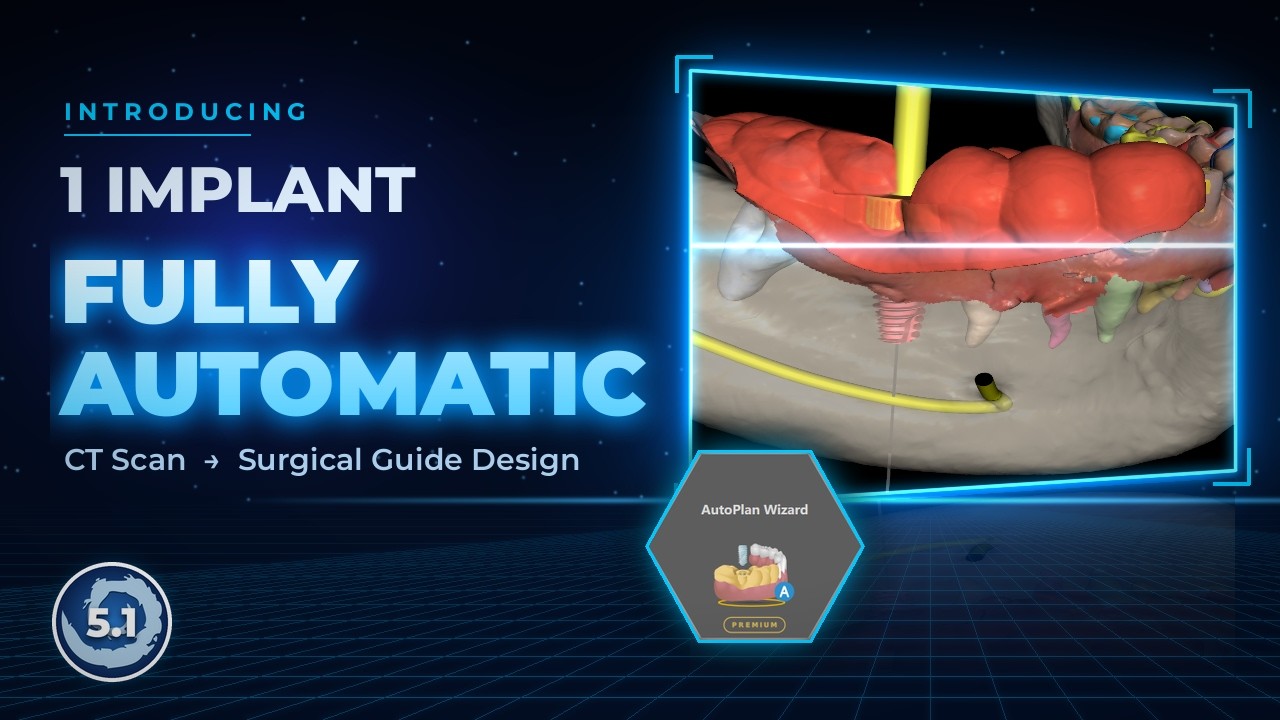
Sky is Blue Sky Bio's new AI assistant that plans an implant case in Blue Sky Plan for you. In this 6-minute demo, Sky finds the CT and optical scans, places the implant, generates the surgical guide, and saves the case, the guide (STL) and the drilling report to one folder. You talk, type or click, and you approve every step.
Key takeaways
Sky runs Blue Sky Plan for you: you choose the CT scan, and Sky finds the matching optical scans in adjacent folders.
Automatic planning is hands-off: Sky merges the scans, detects the nerves, generates an AI tooth, sizes and places the implant, and draws the guide curve.
When the plan is ready, Sky walks you through it, rotating 360° around each implant in the tangential view.
You can change the plan by voice, for example "move the implant 1 mm distal," or take control of Blue Sky Plan with your mouse.
One save stores the case, the surgical guide and the drilling report in a single named folder, and Sky can add the case's parts to your blueskybio.com cart.
Chapters
0:00 Meet Sky
0:25 Talk, type or click
0:36 Start a new case
0:51 Sky finds the CT and optical scans
1:20 Arch, implant system and guided kit
1:50 Hands-off automatic planning
2:52 Plan ready: Sky walks you through it
3:30 Change it by voice: "Move 1 mm distal"
4:26 Surgical guide generated
4:58 Name and save: case, guide and drilling report
5:28 Add the parts to your cart
5:52 Free surgical guide offer
6:08 Your saved case folder
Step by step
Click Start in Sky, or drag a full patient folder into Sky.
Click Choose CT scan and navigate to the patient's CT. Sky finds the matching optical scans in adjacent folders.
Confirm the scans with Load these scans.
Select the arch (lower arch in the demo).
Confirm the implant system and guided surgical kit with Yes, use these (Sky remembers your last choice), or click Change.
Let Sky plan automatically. It takes a few minutes depending on the CT scan and your computer; a ding tells you the plan is ready.
Click Show me the implant plan to watch Sky's 3D and 360° tangential walkthrough.
Click I've confirmed the plan, continue; or speak or type a change; or click I'll make changes myself.
Review the generated surgical guide, then approve and save it, or click I'll adjust it myself and finish with I'm done, save it.
Name the case (keep the suggested name, click Change name, or tell Sky). Sky saves the case, the guide and the drilling report to one folder.
Click Add to cart to send the case's Blue Sky Bio parts to your blueskybio.com cart, or click Not now.
Frequently asked questions
What is Sky in Blue Sky Plan?
Sky is Blue Sky Bio's AI assistant that drives Blue Sky Plan for you: it loads the case, plans and places the implant, creates the surgical guide and saves the files. You talk to it, type to it or click its on-screen prompts.
How long does Sky take to plan an implant case?
A few minutes, depending on the CT scan and your computer. It runs automatically, so you can see a patient while it works and come back when it dings.
Can I change the implant plan Sky creates?
Yes. Say or type a change such as "move the implant 1 mm distal," or click I'll make changes myself and adjust the plan in Blue Sky Plan with your mouse. You approve the plan and the guide before anything is saved.
Does Sky offer a free surgical guide?
On eligible cases, Sky offers to have the surgical guide manufactured through Blue Sky Bio's free surgical guide program. In the demo, the offer appeared on a U.S. case.
How do I get Sky?
Sky is in beta. Download the Sky beta at blueskybio.digital/sky.