


Blue Sky Plan Manual
Explore the complete Blue Sky Plan 5.1 user manual, from setup to every planning module.
Browse by chapter, or search by title and keyword to jump straight to any section.
27.13 Generating and Exporting STL Models
The final step, Export, is again common for all types of planning. The only difference is in what can be exported in this final step (OBJ or STL models or the parameters of the curve).

Before the export itself, it is necessary to check all of the intermediate positions of the generated models. After the check, it is possible to export models in different coordinates; regular and separated models can be sent separately. A model's export coordinates can be selected in the Orthodontics Panel.


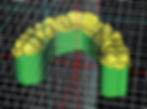
Platforms are automatically added to the generated models, allowing for the horizontal 3D printing of a larger number of models. They are added separately for models and for aligners, and for additional work with them, it is necessary to have the correct option checked on the Orthodontics Panel. The default settings for platforms (size and rotation) are found in Preferences, Orthodontics tab. These parameters can be further manually adjusted for a specific case. Using the "Separate" slider, it is possible to create two smaller parts at the end of the jaw, which are sufficient for printing. You can add the platform to a model just in one step – it will be generated in the remaining steps.
The Orthodontics panel also allows you to supplement the generated intermediate models and aligners or IBTs with text with a 3D profile emboss or engrave (typically the patient's name and the step number). This is done with the "Label Tool" which works like the one used to emboss text on surgical guides. The text needs to be attached to the first model only and it is automatically propagated onto the other intermediate models. It is necessary to choose either the emboss or engrave method in the "Label tool" and if it will be applied on the generated models or aligners (IBT). It is also possible to choose if the label text and number of the model will be generated on the same row.

If the generated STL model needs to be optimised for print, hollow with (or without) a cross pattern, the user must check the "Generate Steps as Hollow Models" and check the "Generate Cross Pattern" in Preferences, in the Orthodontics tab, before exporting.

Besides the models, the parameters of the Aligner Trim Curve can be exported as well for the Aligners planning type. The generated curves for intermediate models can be modified individually with the visualised locator to be optimally prepared for use on the milling machines. The parameters "Curve File Delimiter" and "Curve File Extension" can be modified in Preferences.

In this step, once again, it is possible to export a video. If you added attachments in the previous steps, it is now possible to export video with the available attachments. The generated models can be exported from the software in the form of STL models by pressing the "Export" button. When working with CT data, it is also possible to export the segmented teeth, including their roots. By selecting the "Open in Alpha AI" or "Open in RayWare" or "Open in Uniz Dental", models can be exported to the respective external 3D printing software. Note: To export the STL files, you must have a valid STL export license! To see the option "Open in Alpha AI" or "Open in RayWare" or "Open in Uniz Dental" you must have those software programs installed on your computer.

There is an option in the export step to export files to BioBigBox, where it is assigned as a new Patient and Treatment. This information will be sent to the BlueSkyMonitoring service when the "Activate Remote Monitoring For This Patient" is checked. LabPronto (represented by the "Order Aligners Now" button) is a solution for sending the user's order directly to the most capable provider to get the user's job done properly and quickly. LabPronto analyzes the user's order, lab availability and the price the user will pay. Lab Pronto will then prioritize the user's order to the specific lab that will create the order. Lab Pronto offers various ordering options, allowing the user to order exactly and only what he needs. He can outsources the entire case, manufacturing or planning. "Export Both Jaws" exports both the maxilla and mandible into the selected folder. For immediate and automatic STL license activation, purchase exports directly in the Blue Sky Plan Software (File > Purchase STL Exports). You may also purchase STL case exports from https://blueskybio.com/store/stl-case-export. Finally, it is also possible to generate the so-called Tooth Movement Report with the angles and displacements of the teeth moved from the original position to the final position. In addition, the report shows the movements from each intermediate position to the next stage.

By clicking on the dropdown menu next to the "Back" button, it is possible to "fast jump" several steps back.