


Blue Sky Plan Manual
Explore the complete Blue Sky Plan 5.1 user manual, from setup to every planning module.
Browse by chapter, or search by title and keyword to jump straight to any section.
17.5 Text tool
The surgical guides fabricated can be supplemented with one or more labels with a 3D profile. This is done with the "Text tool". It is first necessary to check whether the correct model is selected. If the model is set as invisible at this point in time, the user is notified of this when he or she tries to insert a label on it. The text is inserted into the editing field. At this point, an auxiliary display of the text entered is also shown in the 3D display window. The text will be located on the model at the location at which it is displayed in this window. Therefore, it is necessary to position the model in the 3D window in such a way that the text will be at the right position on its surface. It is also necessary to choose one of two methods for creating text-depth: emboss or engrave.
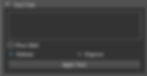
Then press the "Apply Text" button. The auxiliary display of the text in the 3D window is hidden, and the text is pressed into the surface of the surgical guide. The auxiliary display in the 3D window can be reactivated with the "Show label" checkbox.
